1Sign in to Organizer V2, open My Events and choose Manage on the correct event.
2Check the event title, date and published status before changing tickets, staff access or customer communications.
3Use the event tabs for Attendees, Tickets, Issue tickets, Gate setup and Finance. Use the sidebar Bookings page for booking confirmation and ticket PDF emails.
Resend a booking confirmation or ticket PDF
1Open Bookings in the organiser sidebar and search by attendee name, email, booking reference or event.
2Check the event, booking status, payment status and active passes. Do not send a confirmation for a cancelled or refunded booking.
3Choose Resend confirmation to queue the normal booking email to the attendee email recorded on the booking.
4Choose Email ticket PDF when the booking is eligible and has an active ticket. This queues a confirmation email with the ticket PDF attached to the same attendee address.
5Wait for Email queued or PDF email queued. A queued message is not proof that the recipient opened it; ask them to check spam if needed.
Important: The PDF action is not available for every record. It requires an eligible paid or completed booking with at least one active ticket. Never issue a new ticket simply because a customer cannot find the original email.
Issue a paid ticket after collecting money outside the platform
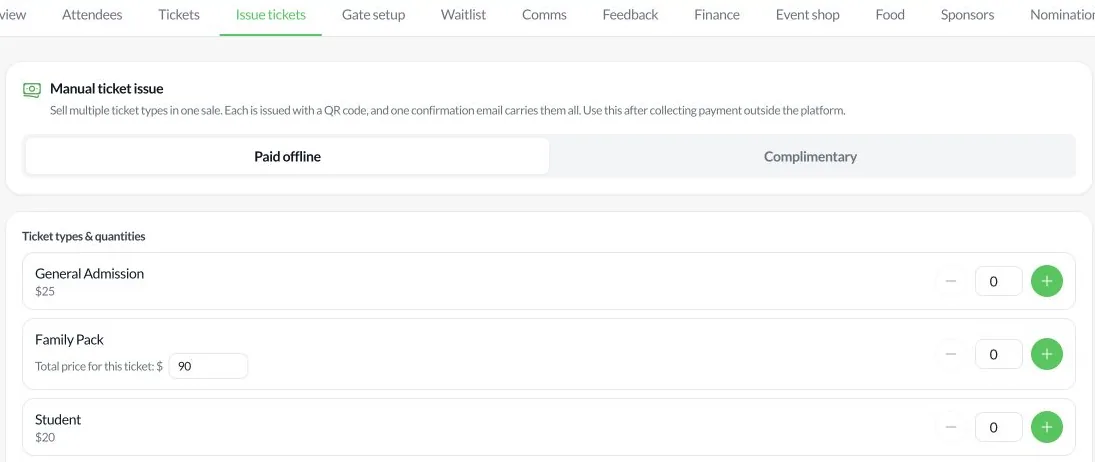
Issue tickets: Paid offline and Complimentary modes (staging example). Select to view full size.
1Open My Events, Manage the event, then select Issue tickets > Paid offline.
2Select the ticket types and quantities. Check the resulting admission-pass count, especially for family packs.
3Enter the attendee's first name, last name and email. Choose Cash, Bank Transfer, EFTPOS or Other, and record a payment reference and internal note where appropriate.
4Confirm that you have actually collected the money outside Tamil Australia, then select Issue tickets once. The recipient receives one confirmation email with QR tickets.
5Verify the new booking in Bookings or Attendees before retrying if the page takes time to refresh.
Important: Paid offline is a manual record, not a Stripe charge. It must remain outside platform-collected payout totals. Do not use it to recover a failed online payment without checking the existing booking first.
Issue complimentary admission
1In the same Issue tickets tab, choose Complimentary.
2Enter the quantity and the recipient's name, email and phone, plus a clear internal reason.
3Select Issue and email complimentary tickets. Each admission has its own QR code, while one confirmation email carries the tickets.
4Verify the resulting passes in Attendees. Complimentary issues are not paid ticket revenue.
Set up the gate and ticket masters
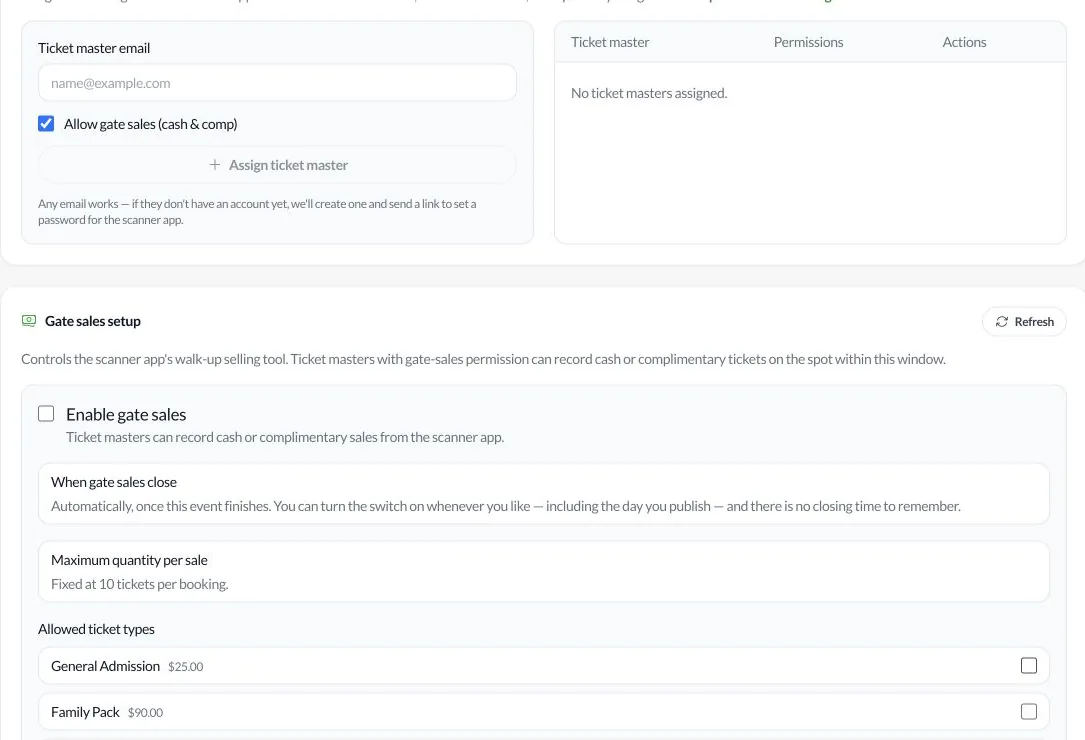
Ticket masters and gate sales controls (staging example). Select to view full size.
1Open Gate setup on the correct event. Under Ticket masters, enter the staff member's email and select Assign ticket master.
2Grant Allow gate sales (cash & comp) only to staff who may record those transactions. A scanning-only worker does not need sales permission.
3Ask staff to sign in to TA Scanner with the assigned email and confirm that this event appears before doors open.
4If selling at the door, enable gate sales, choose allowed ticket types and save the gate sales setup. The walk-up QR will not sell tickets while door sales are off.
5Remove a staff member's event assignment when they no longer need access.
Important: Ticket-master access is event-specific. Assigning a person to one event does not grant access to every organiser event.
Check in attendees and handle food vouchers
Scan an admission QR with TA Scanner and check the event, ticket type and status before admitting the person. Search by name, email or reference if the QR cannot be scanned.
A refunded, cancelled, invalid or already checked-in admission must not be admitted without resolving the booking status.
Food add-on vouchers are not admission passes. Use the separate food-counter redemption flow when available; do not mark a food voucher as an attendee check-in.
Event Shop food and merchandise orders have their own collection status in Seller Hub and should not be treated as admission tickets.
Reconcile and close the event
1Review Tickets and Attendees to compare ticket products sold with active admission passes issued. A family pack can issue several passes.
2Open Finance and separate platform-paid sales, food vouchers, paid-offline records and complimentary issues. Review refunds and cancellations separately.
3Export the event finance workbook for the event accounts. Platform-collected income and manually collected income must not be added together as an amount Tamil Australia owes you.
4After the event, review check-in and collection records. Do not resend a confirmation or issue a replacement ticket until you have checked the existing booking.