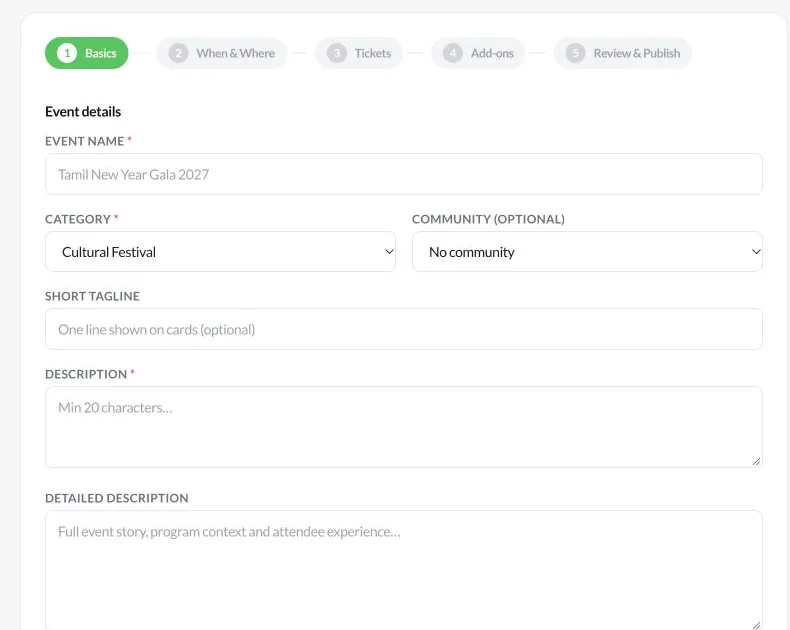
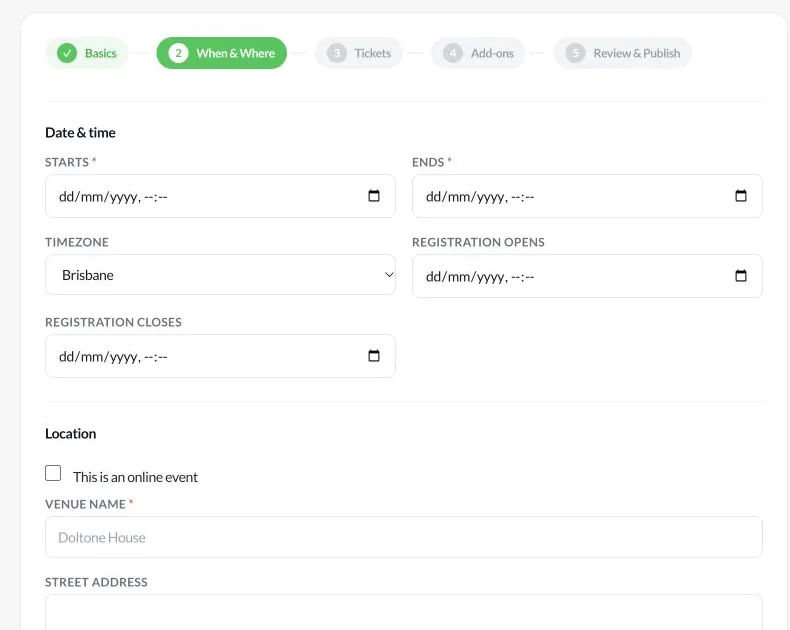
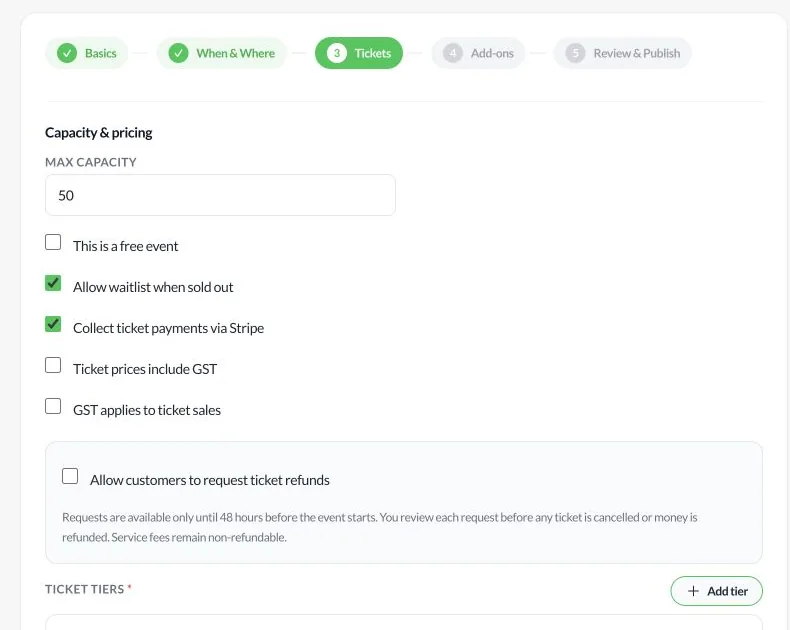
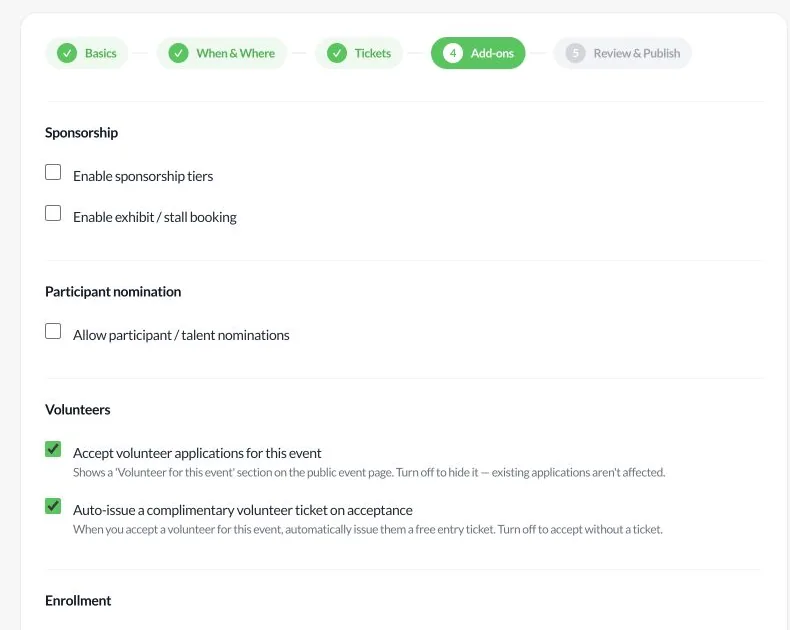
Step 1: Basics (staging example). Select to view full size.
1Sign in to Organizer V2 and select Create Event, or open My Events and start a new event.
2In Basics, enter the event title, category and a clear description. Add an agenda and other customer instructions where relevant.
3Upload an image you have permission to publish. Check the generated mobile and desktop crops, and add a 16:9 desktop override if the automatic crop cuts off important content.
4Complete optional search title, keywords and description, then continue to When & Where.
Set the date and venue
Step 2: When & Where (staging example). Select to view full size.
Check the event's local timezone and ensure the end is after the start. Registration opening and closing times control when customers may book.
For an in-person event, provide the venue name, address, city and state. For an online event, provide the platform and joining link.
Tickets and admission
Step 3: Tickets (staging example). Select to view full size.
Set a quantity and price for each paid ticket product. A family or group product can issue several individual admission passes.
For a family product, define who is included so the correct number of scannable passes is issued.
For a food-only event where the purchase grants entry, use an admission ticket. For a separate food purchase, use Event Shop or the explicit Food add-on (no admission) tier; neither should increase attendee capacity.
For paid events, review the payment, GST and refund-request settings before publication.
Choose optional add-ons
Step 4: Add-ons (staging example). Select to view full size.
Enable only the sponsorship, exhibit, nomination, volunteer or enrolment features that your team will manage.
Check whether approval should automatically issue a complimentary admission pass; those passes are separate from paid sales.
Save a draft or publish
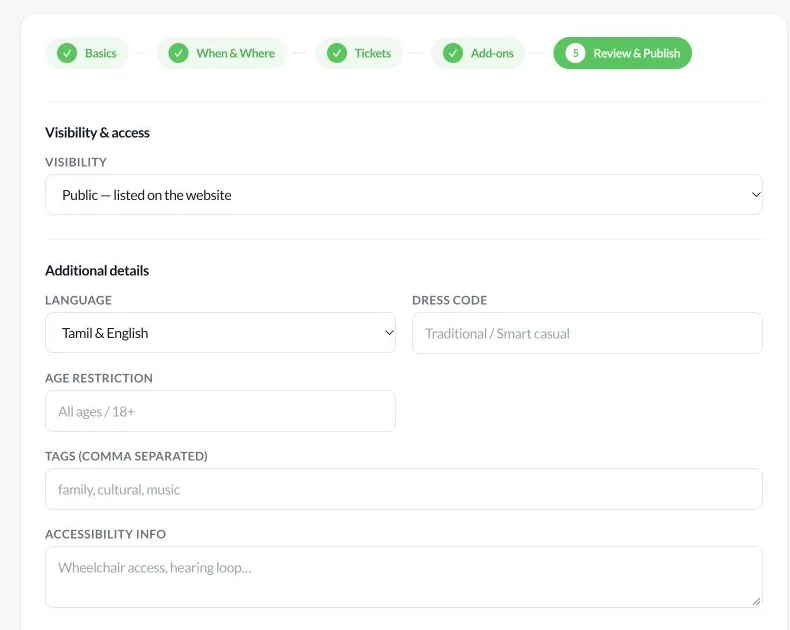
Step 5: Review & Publish (staging example). Select to view full size.
1Review the title, date, venue, ticket products, capacity and customer-facing details on the final step.
2Select Save as Draft if the details need more work. Drafts are not ready for public promotion.
3Select Publish Event when the information and ticket sales are ready. Resolve any validation errors shown by the form.
4Open the saved event from My Events and verify its public event page and booking flow before sharing the link.
Important: Do not put a draft preview link on posters. Use the published event link after checking it in a private browser window.
After publication
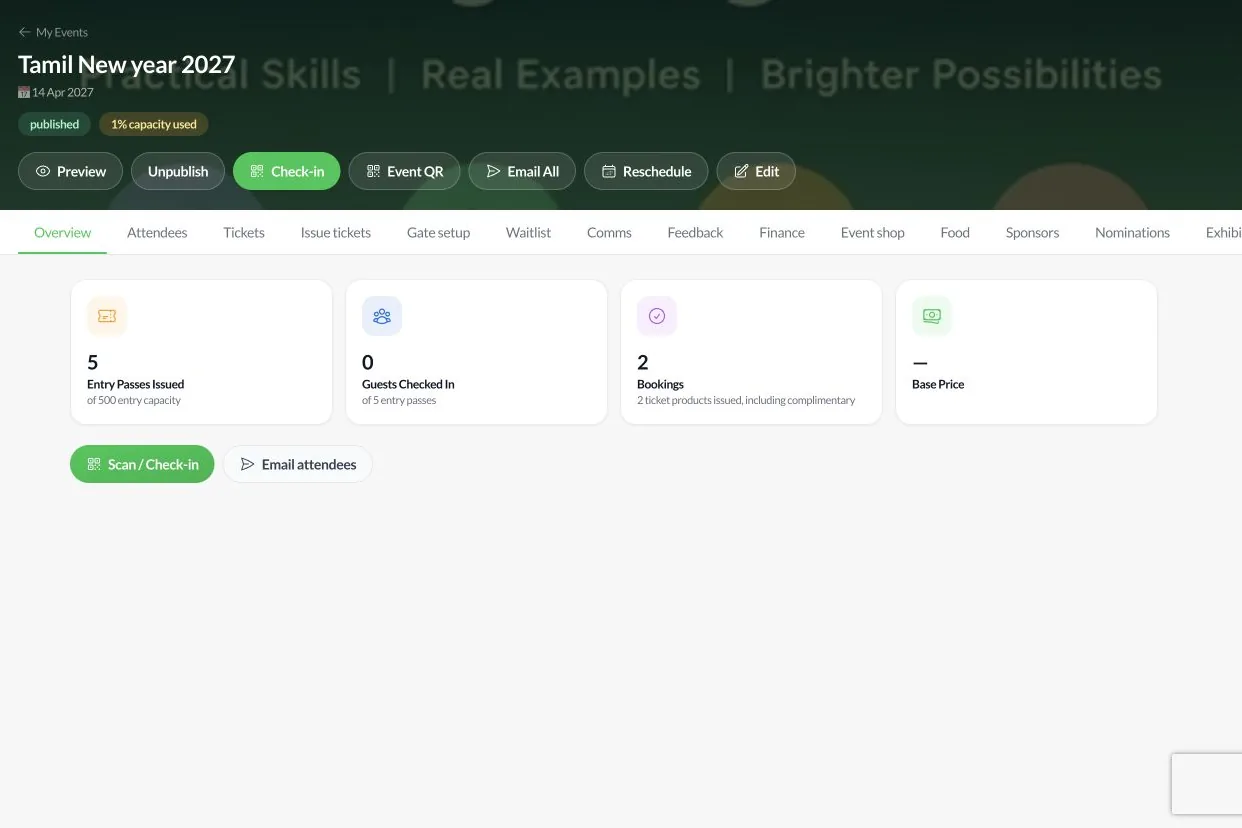
Event management hub (staging example). Select to view full size.
Use the event hub to edit details, manage tickets, review attendees and monitor finance.
Use Unpublish only when the event must be hidden from the public site; it does not automatically cancel existing bookings.
Check the event again after changing a ticket tier or capacity, especially before sharing a sales link.